

This guide is designed to help you set up GoCardless for payments for both your child’s subscription fees, camp, events and other costs. We introduced GoCardless as a payment method as it has proved to save endless hours of admin for leaders and the group treasurer.
GoCardless uses the Direct Debit scheme to take payments, meaning that all that is requiredto sign up to it is a UK bank account, using your 6-digit Sort Code and 8- digit Account Number. Unlike with BACS payments, you do not need to have online banking, and using this method ensures that the correct amount is paid, and it is guaranteed to reach our account.
You will need to set up 3 direct debits for each child you have in our group, one for membership subscriptions and one for events/activities and one for camps. Subscriptions will normally be taken about 2 weeks into the start of each half term. A payment for an event, activity or camp will be set up when you respond ‘yes’ to an event in your section’s WhatsApp group and will leave your bank account on the payment due date. You will be notified of when a payment will be coming out of your account and you will have the opportunity to cancel the payment if you want to.
The advantage of using this system is that once you have set up the direct debits, taking about 5-10 minutes, you will not have to set up any more payments, saving you time as well.
When a child moves to a different section they will be removed from the payment schedule in their past section and you will then have to set up new direct debits when the system emails you a head of a first payment.
Below is a guide on how to set up the direct debit for your child, however if you have anyissues in setting this up, please contact your Childs section leader.
How to set up the Direct Debit
If you have just joined our group, you will have been sent a link to OnlineScout Manager (OSM) which is the system we use to store all the contact details for your child and let you know what we are doing each week or anyevents/camps we have planned. This system is used by almost all scout groups in the UK and is also how we set up the payments with GoCardless.
In this guide, I will show you how to set up a direct debit for the subscription fee, however you will also need to do the same for the ‘Events and Camps’ sections, following the exact same instructions as below.
During the setup process you may also be prompted to sign up to Gift Aid,if you are a UK tax payer please sign this as doing so will enable us to claim additional funds from HMRC at NO cost to you.
To Set up the Direct Debit:
- Go to Online Scout Manager at www.onlinescoutmanager.co.uk/login.phpand sign in with your email and password. If you do not yet have an email/password set up, please contact your section leader who will be able to send you an email link to set this up.
- Once on OSM, select your child’s name from the left-hand side andthen the ‘payments’ tab as below.
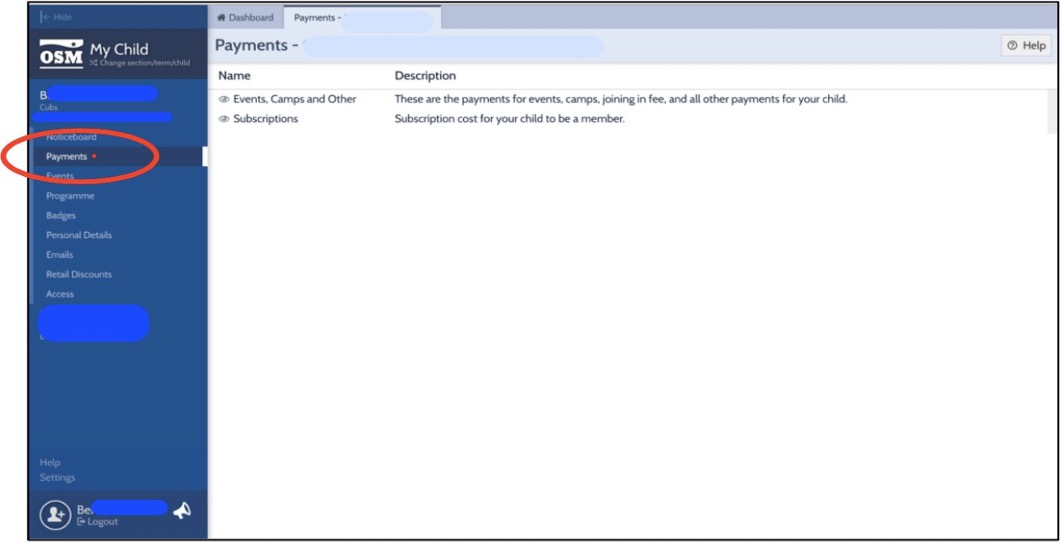
- Select ‘Subscriptions’ and you will get the screen below.
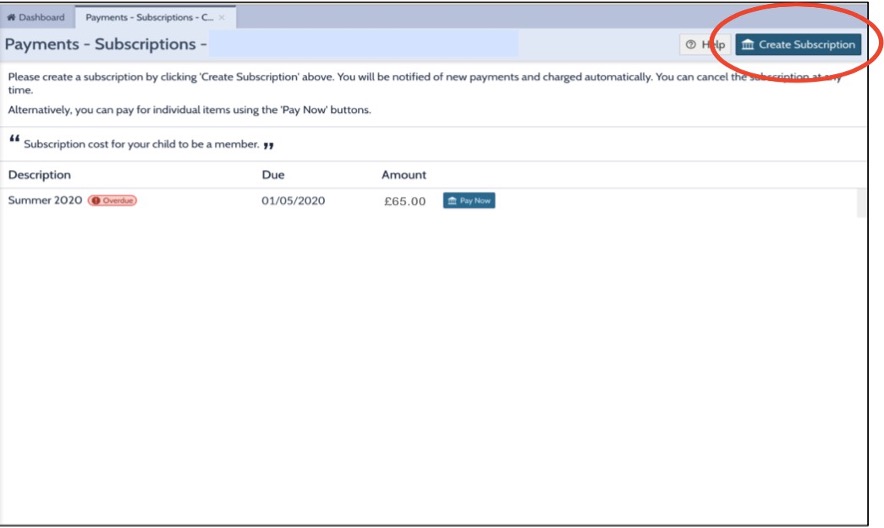
- Select ‘Create Subscription’, as circled above, to set up the direct debit.you will need to set up a direct debit for both Subscriptions and Events.
Selecting Pay now will not setup a direct debit. It will take a one off paymentand you will need to repeat this process for any future payments. Creating a subscription is the recommend method. Once setup we will always notifyyour before we take payment enabling you to cancel/change bank details if require
- Select ‘Open GoCardless in new window’. This will open the new tab
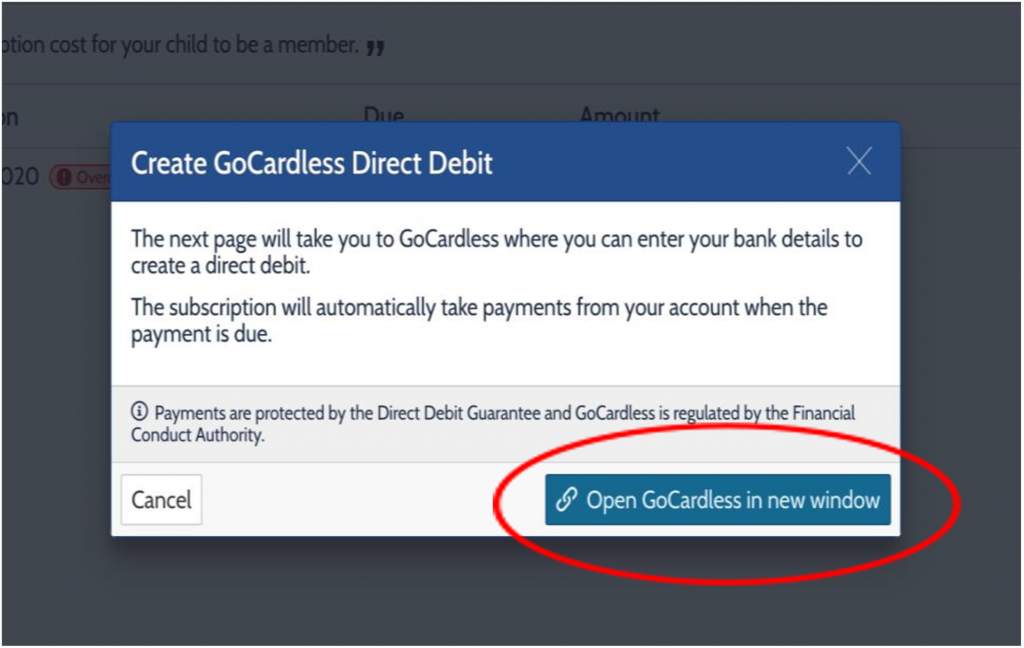
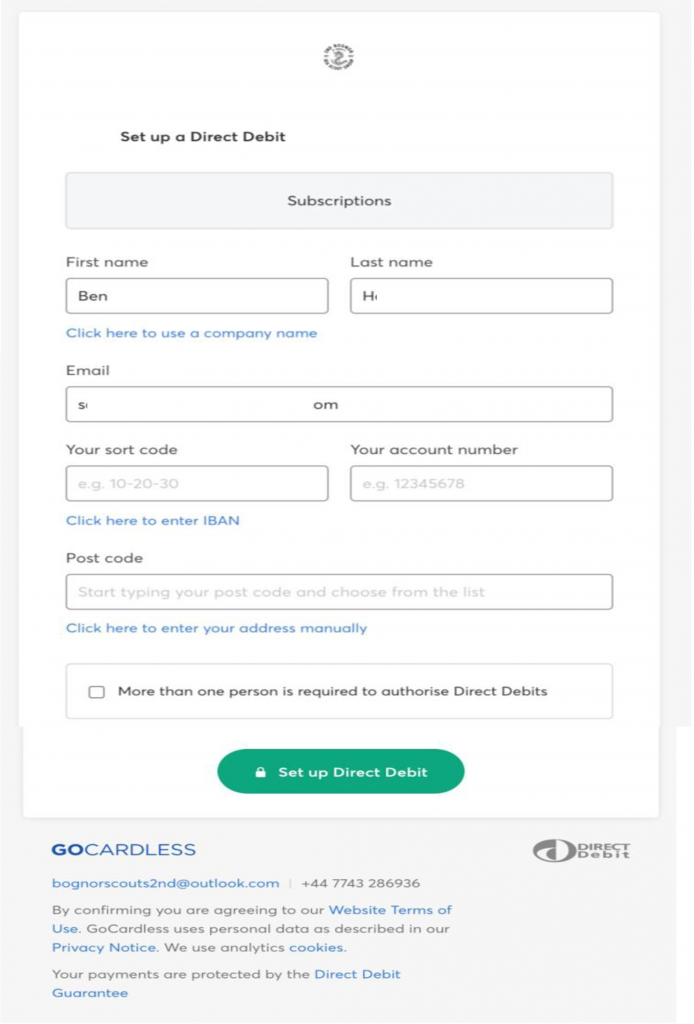
- Enter your UK Bank Account details, and the address that your card is registered to (most likelyyour home address).
- Only click on ‘More than one personis required to authorise Direct Debits’ if 2 people are needed to authorise them, some joint accounts require this. If this is selected, you will need to follow a few extra steps to complete this. Please contact your section leader for details.
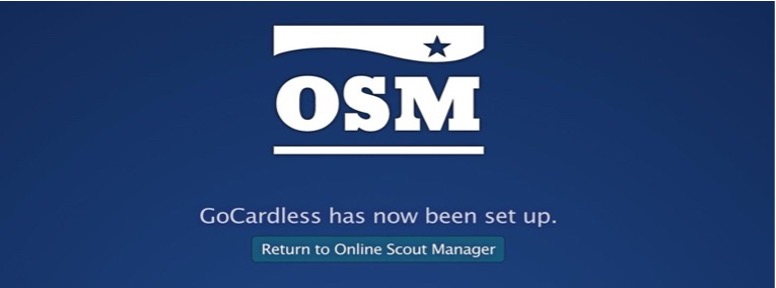
- Select ‘Set up Direct Debit’, then ‘confirm’ on the next page. This will bring up the page as below, select ‘Return to Online Scout Manager.
Once back in OSM please repeat the steps as above for the ‘Events, Camps and Other’.
Please note: If you have more than one child in the group, this process will need to be repeated for each child.
You have now setup direct debit, thank you very much.